Browser & phone#
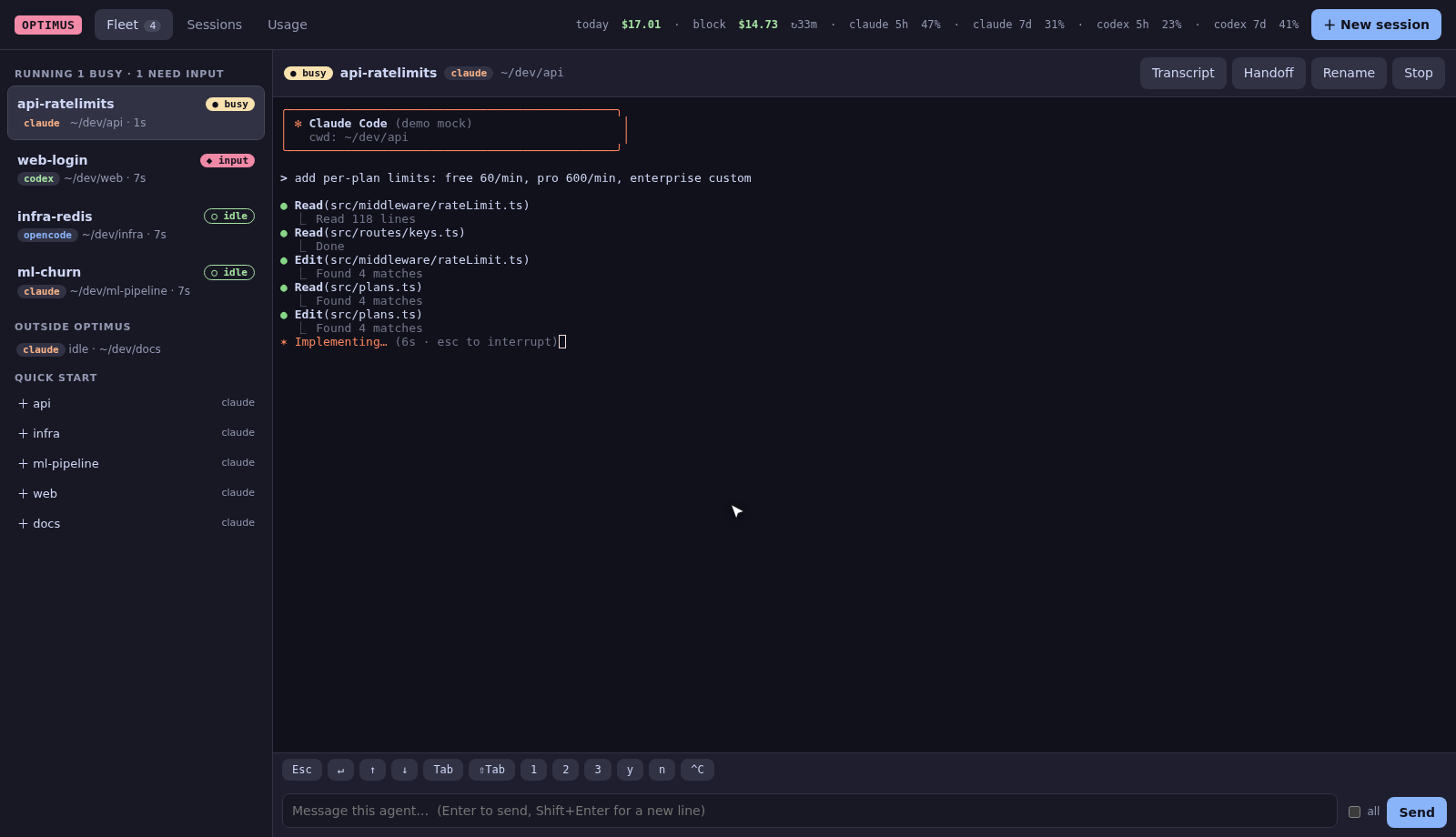
The web dashboard drives the same agents as the terminal UI:
- Fleet: every running agent with its state, plus a live, interactive terminal for the one you select. Type straight into it, or use the message box (Enter sends, Shift+Enter adds a new line; tick all to broadcast).
- Keys: one-tap buttons for Esc, ↵, arrows, Tab, 1/2/3, y/n and ^C, for answering an agent's questions without a keyboard.
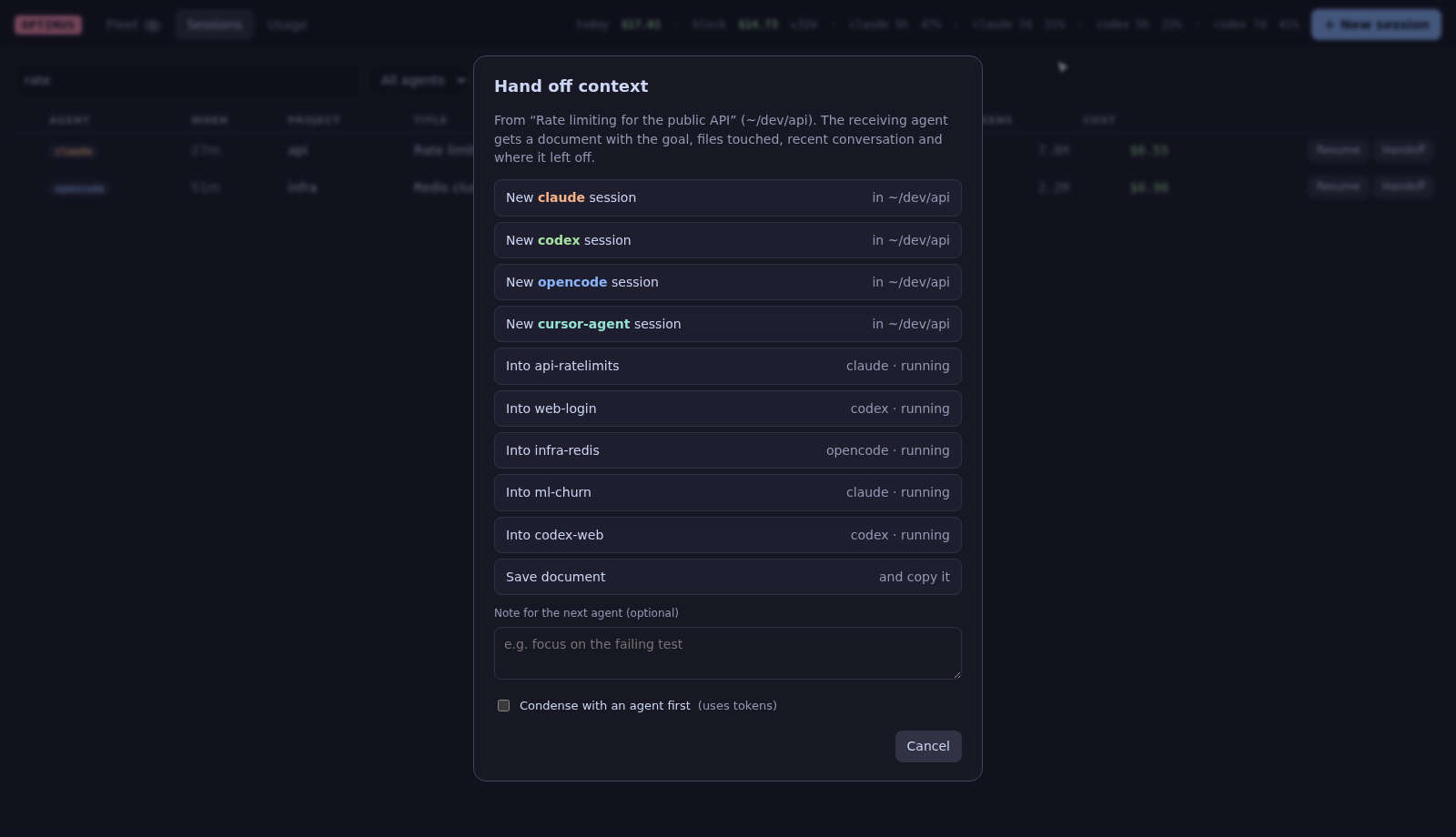
- Sessions: search, filter by agent or project, read transcripts, Resume and Handoff.
- Usage: spend, quota, the current block, budgets, a 30-day chart, and breakdowns by model, agent and project.
- Command palette (Ctrl+K or ⌘K): jump to any agent, session or project, or run any action.
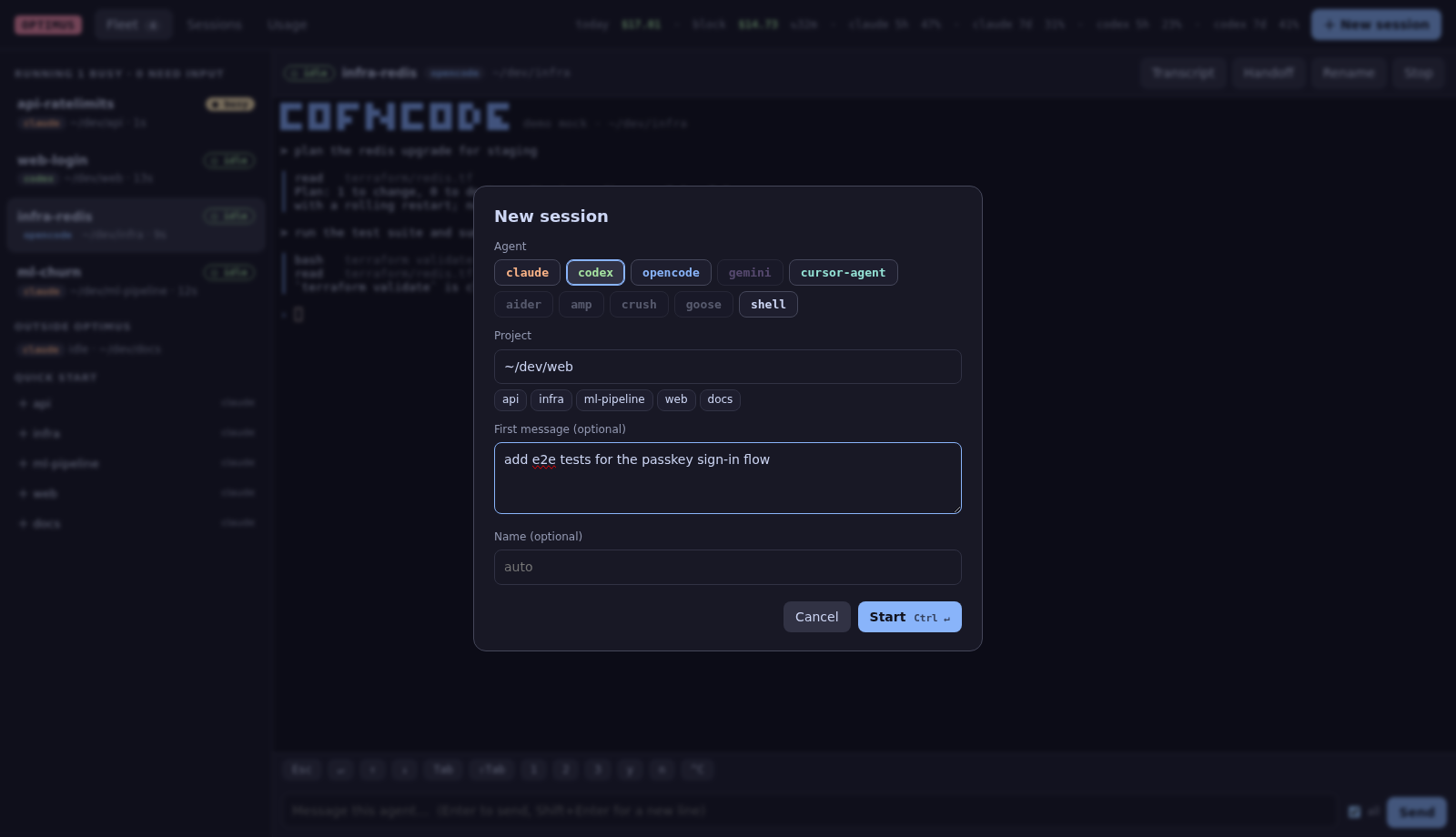
- + New session (or N): agent, folder, first message, name, and Claude Remote Control. Quick start in the sidebar starts your default agent in a recent project with one click.
Choosing the folder#
The folder field searches every project under your home folder (git repositories and folders with a project manifest such as go.mod or package.json), not only those that already have sessions. Folders you've used before rank first. Type ~/ or / to browse like a shell: Up / Down choose, Enter picks, Tab or › opens a folder. The terminal dashboard's N uses the same search.
On your phone#
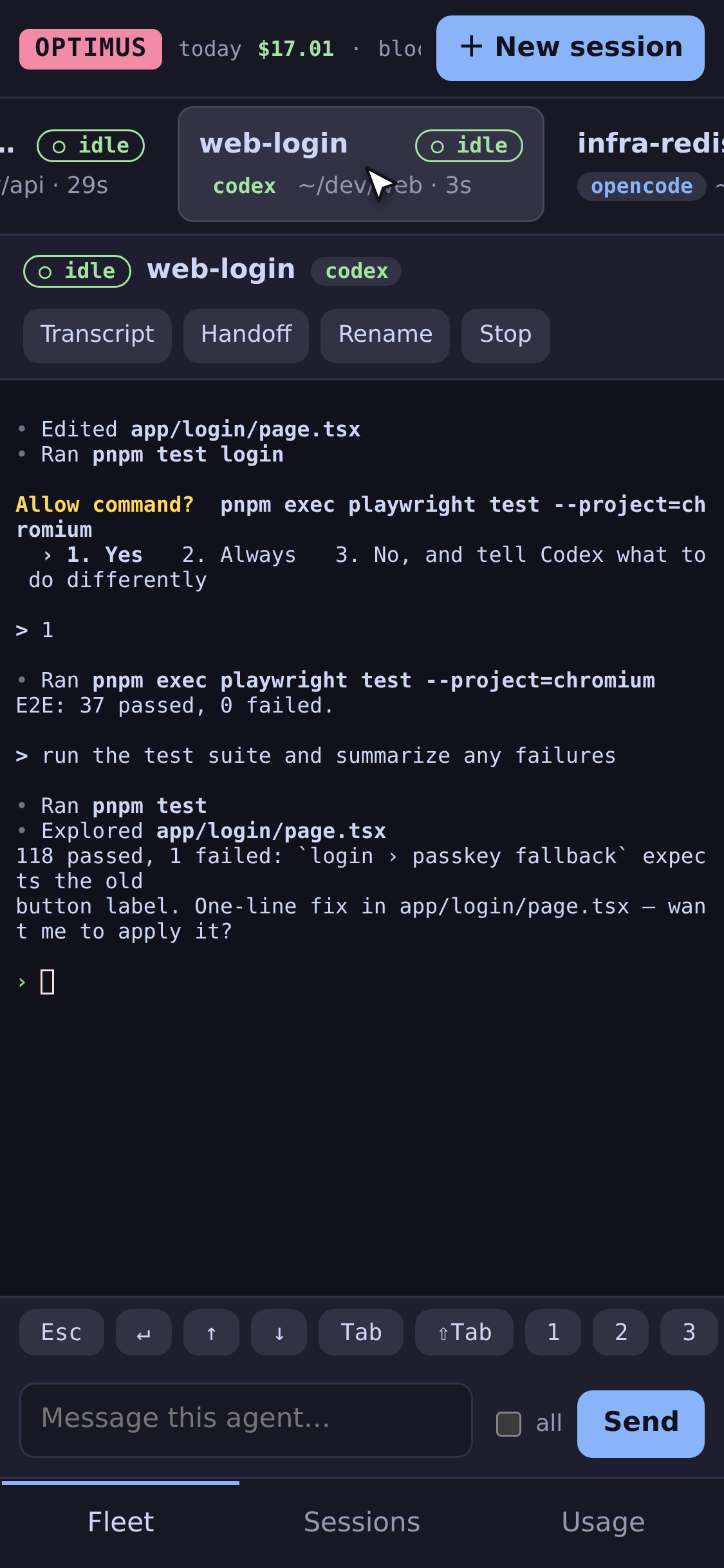
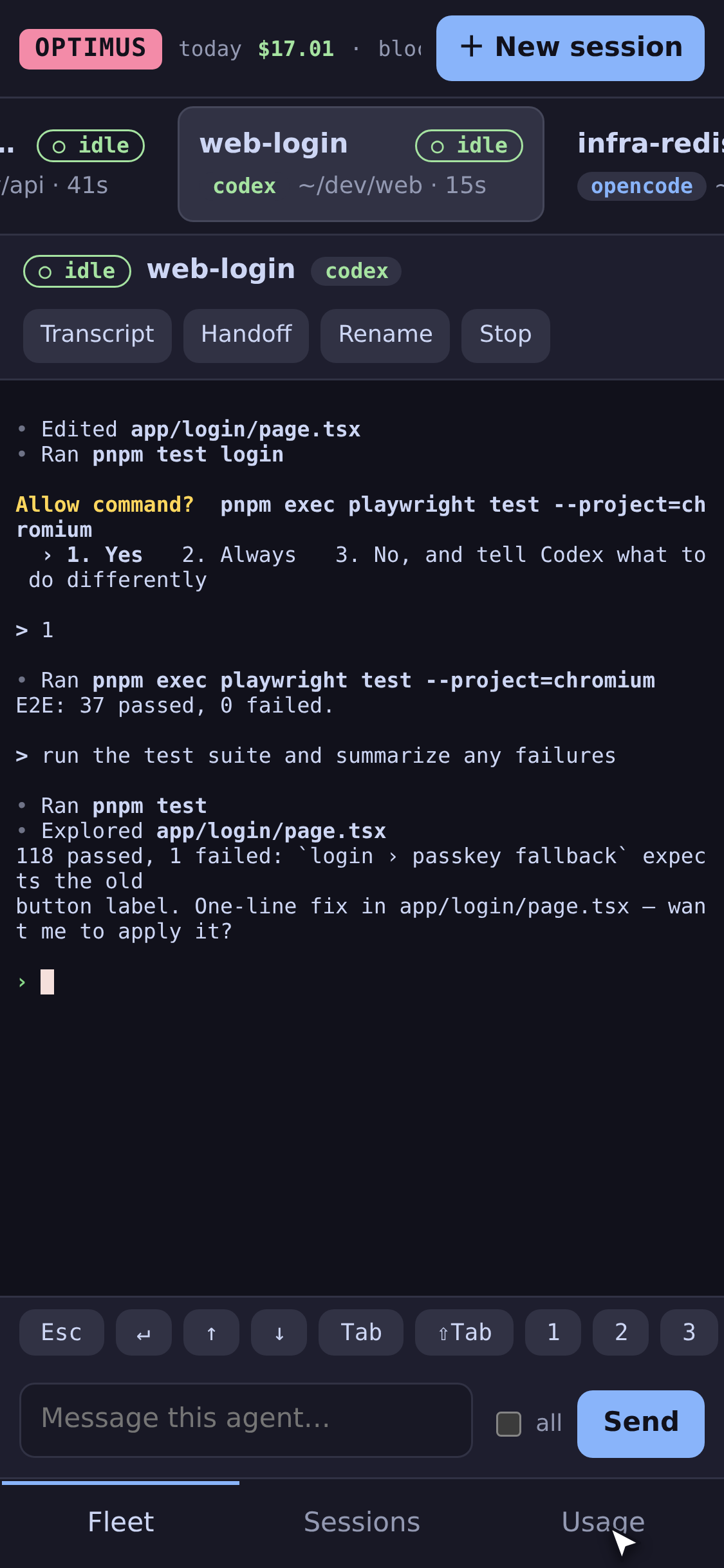
The layout adapts to small screens: agents become a swipeable row, the terminal fills the screen, and navigation moves to the bottom.
To reach it from your phone, put both devices on a private network and listen on that interface:
optimus web --bg --addr 100.101.102.103:7777   # your machine's Tailscale IP
optimus web --url --addr 100.101.102.103:7777   # prints a QR code: scan it with the phone's camera
optimus web --url prints a QR code of the login link (Tailscale addresses first). The 📱 button in the dashboard shows the same QR, which is handy when it's already open on your laptop.
Install it as an app#
The dashboard is a Progressive Web App: Add to Home Screen (iOS Safari) or Install app (Android Chrome) gives it an icon and a full-screen window. Installing, and system notifications on the phone, need HTTPS. The simplest way is Tailscale's built-in HTTPS proxy:
Then open https://<machine>.<tailnet>.ts.net/?token=… (the token from optimus web --url) on the phone.
Push notifications#
For notifications on the phone even when the app is closed, use ntfy: install the ntfy app, subscribe to a long random topic, then
See Attention & notifications.
Don't expose it to the internet
Anyone with the access token can type into your agents. Use Tailscale, WireGuard or an SSH tunnel. --addr 0.0.0.0:7777 works on a trusted LAN and prints a warning. There is no built-in TLS.
Always on#
By default, starting or resuming a session also starts the dashboard in the background (remote.web_autostart), so remote control is ready whenever an agent is running. Manage it with:
optimus web --bg       # start in the background now
optimus web --url      # print the login link
optimus web --stop     # stop the background dashboard
Claude Remote Control#
Claude sessions started or resumed by optimus also get Claude Code's own --remote-control=<name>, so they appear in the Claude desktop, web and mobile apps. Turn it off globally with optimus config set remote.claude_remote_control false, or per session in the New session dialog.
If a terminal looks stuck#
The dot next to the agent's name shows the terminal link: green is live, yellow is connecting, red means lost. Click it to reconnect. The page also reconnects on its own when the link goes quiet for 40 seconds, when the tab comes back to the foreground, or when the network returns.
How the terminals work#
Each browser terminal is a private tmux session grouped with the agents' session: it shares the windows but has its own current window and size. It's attached through a pty and streamed to xterm.js over a websocket. Watching an agent from your phone doesn't move the window you're looking at on your laptop, and closing the tab removes the view, never the agent.