Terminal dashboard#
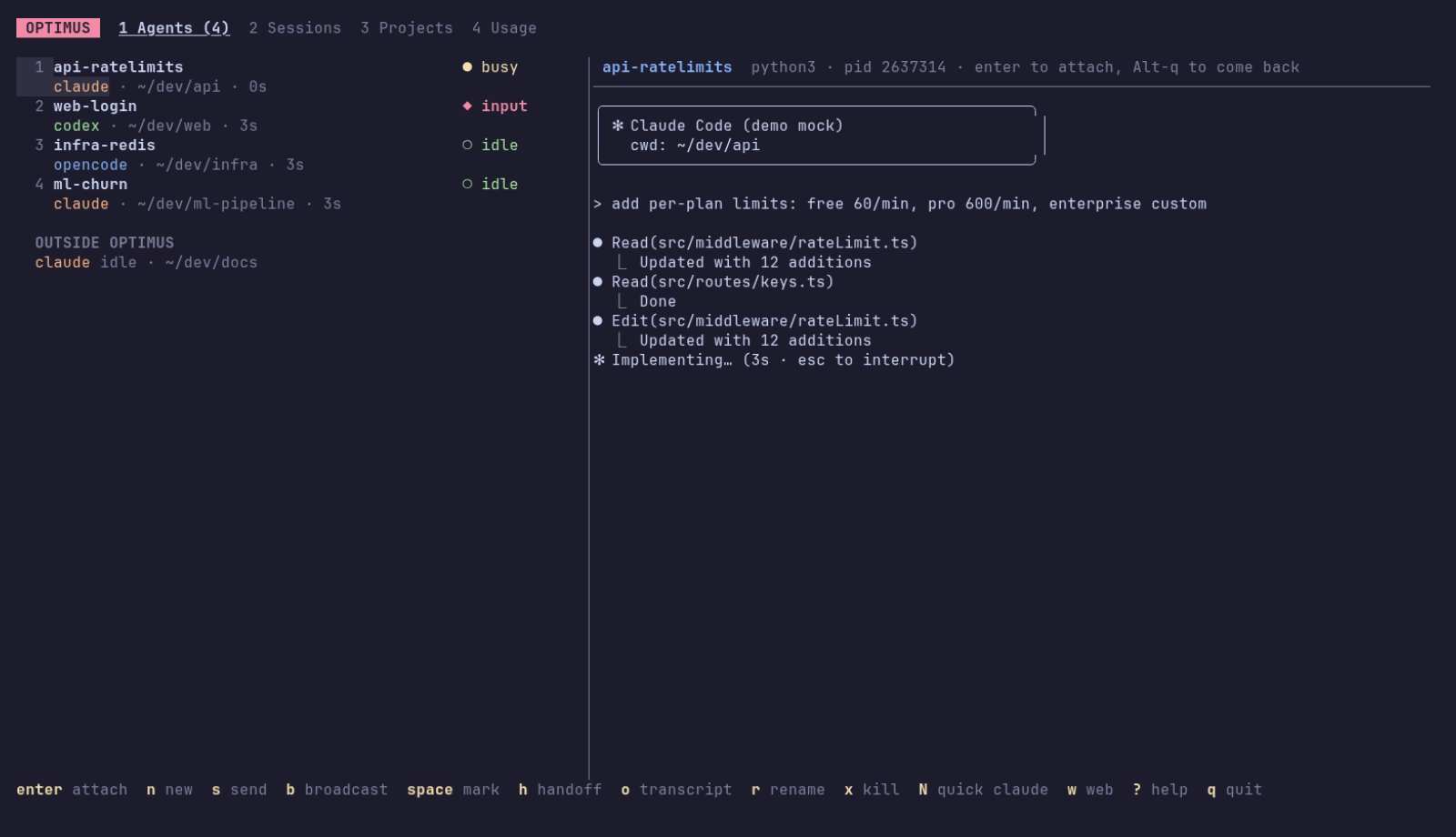
The dashboard has four views. Switch with 1–4 or Tab.
| View | What it shows |
|---|---|
| Agents | agents running in optimus, their state, and a live preview of the selected one; Claude sessions running elsewhere are listed under Outside optimus |
| Sessions | every past session of every agent, newest first, with turns, tokens and cost |
| Projects | sessions grouped by folder, agents used, 7-day and total spend |
| Usage | spend cards, quota windows, the current 5-hour block, budgets, a 14-day chart, top models and agents |
The multiplexer#
Agents run inside a private tmux server (tmux -L optimus), separate from your own tmux, so:
- they keep running when you quit the dashboard, close the terminal or lose SSH;
- Enter attaches you to an agent's real terminal, Alt+Q brings you back, and Alt+Left / Alt+Right switches agents while attached;
- the browser dashboard and the CLI see the same agents.
Inside your own tmux#
If you run optimus from inside your own tmux (3.2 or newer), attaching opens the agent in a popup over your current pane instead of nesting tmux inside tmux. Alt+Q closes it and the agent keeps running. Choose the behaviour with:
optimus config set attach popup    # always a popup (auto: popup when possible, the default)
optimus config set attach nested   # classic tmux-in-tmux
Agent state#
| Badge | Meaning |
|---|---|
● busy |
working (e.g. "esc to interrupt" is on screen) |
◆ input |
waiting for you: a permission prompt, (y/n), "Allow command?" |
○ idle |
finished, ready for the next message |
✗ exit |
the agent process ended |
Claude Code and Codex sessions started by optimus report their state themselves through hooks, so needs input is exact and comes with the question ("wants to use Write: hello.txt"). Other agents' states come from the bottom of their screen. See Attention & notifications.
Press I (or Alt+N while attached) to jump to the next agent waiting for you.
Starting an agent#
N asks which agent, then where. The folder list searches every project under your home folder (git repositories and folders with a project manifest), with the folders you've used before first, so a project you've never run an agent in is a few letters away. Type ~/, / or ./ to browse instead: Tab opens the highlighted folder, Enter starts the agent there. The first row of a typed path is the folder itself.
In a git repository optimus then asks whether the agent gets its own worktree. Shift+N skips the pickers: your default agent, in the project you're looking at.
Command palette#
Ctrl+K (or :) opens one searchable list of everything: running agents (go to …), recent sessions, new <agent> in <project> for your recent projects, and every action. Type a few words in any order (codex api, rate lim) and press Enter. The browser has the same palette on Ctrl+K (Cmd+K on macOS), even while a terminal has focus.
Keys#
| Key | Agents | Sessions | Projects |
|---|---|---|---|
| Enter | attach | read transcript | sessions of this project |
| I | select the next agent waiting for you | ← | ← |
| ! | answer its question without attaching | ||
| Shift+F | fan out a task to several agents in worktrees | ← | ← |
| Shift+T | take over an agent running outside optimus (more) | ||
| Shift+C | quota running out: continue the session in another agent | ||
| Shift+D / Shift+M / Shift+X | worktree agent: diff / merge / discard | ||
| N | start an agent: pick which and where (folders) | ← | ← |
| Shift+N | start the default agent here | in the session's folder | in this project |
| S | send a prompt | ||
| Space / B | mark / broadcast | ||
| H / Shift+H | hand off this agent's context | hand off / condensed | |
| Y | copy handoff to the clipboard | ||
| R | rename | resume into the fleet | |
| O | open transcript | open transcript | |
| X | stop | ||
| / / A / P / Esc | filter text / agent / project / clear | ||
| Shift+S / Z | search inside transcripts / show automated sessions | ||
| C | start an agent here | ||
| W | open the web dashboard | ← | ← |
| Shift+R | rescan sessions | ← | ← |
| ? / Q | help / quit | ← | ← |
From the shell#
Every action has a command, handy in scripts and other tmux panes: